TBRHSC/SJCG SECURE FILE TRANSFER
– USER GUIDE
WHAT IS SECURE
FILE TRANSFER?
TBRHSC/SJCG Secure File Transfer, is an
enterprise-class secure and managed file transfer solution that secures and
tracks large and confidential files. It enables users to exchange and transfer
large files easily and securely with colleagues, customers, partners, and other
third parties while maintaining a complete transaction and audit trails
important for regulatory compliance. Files of any size and type are securely
stored to the server and email notifications are sent to recipients notifying
them that a delivery is waiting. Recipients follow a link in the email message,
register and login, and then access their secure delivery. With a user friendly
interface, the solution provides ease-of-use, security, and a complete audit
trail for file transfer and secure messaging needs.
LOGin
information
To access the TBRHSC/SJCG Secure File Transfer site, enter the following address in your browser https://imagex.tbrhsc.net/bds
Note: Registration by invitation only or contact the
TBRHSC Help Desk.
Password Policy
· Password length must be a minimum of ten (10) characters
· At least one (1) uppercase character (A through Z)
· At least one (1) lowercase character (a through z)
· At least one (1) numerical digit (0 through 9)
User will be forced to change their password on initial log
in and every 90 days thereafter. A
warning email will be sent to the user at 14
days before expiration. Old user
password cannot be reused as new password.
Force logout time is currently set to 30 minutes.
HOW TO RECEIVE
IMAGES
The
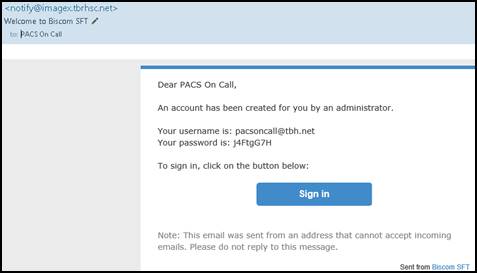
recipient will get an email notification when there are files waiting for them
to retrieve. New recipients are directed to an account creation page that they
must complete before they retrieve the file. Once the recipient is registered
on TBRHSC/SJCG Secure File Transfer, you can log into the application with your
username and password. The account will remain valid for future transactions.
Note: The secure file transfer service is not a data
repository. The recipient will have up to 14
days to retrieve the files. However, the sender could also assign an expiry date shorter than the
default to automatically delete the data after such date. The sender could also
protect the transfer transaction by assigning a password to the file and the
recipient will not be able to access it until they get the password from the
sender.

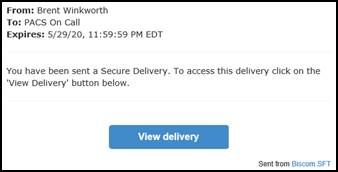
The
recipient will have to click the link (View
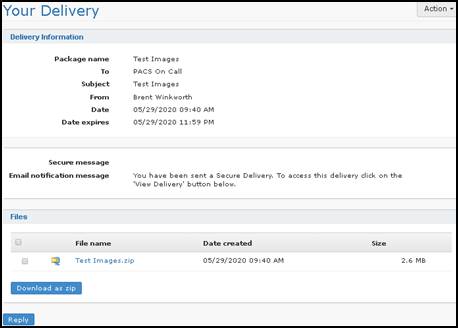
delivery) to access the file. Once registered and logged into the system,
the recipient can download the file. The recipient will also have the option of
replying back to the sender with a message and/or attachment.


Launching PACS Viewer
Image viewing
software is not accompanied with the export of any images. By request, software
that displays images in a non-diagnostic format can be provided. If diagnostic
image quality and review is required, the examination(s) must be imported into
a clinical PACS System or similar.
Once the file is downloaded, right-click the
exported zipped folder and select Extract All…
Go into the new created folder and select run_cdviewer for Sectra or _Run_Viewer for Synapse to launch the
viewer and images.
HOW TO SEND
IMAGES
The
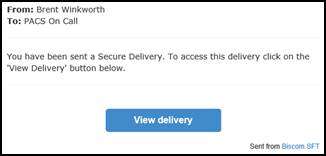
recipient will receive an email notification and will have to select the link
to log into TBRHSC/SJCG Secure File Server. If this is the recipients first
time accessing the application, they will be prompted to register. Click View delivery.

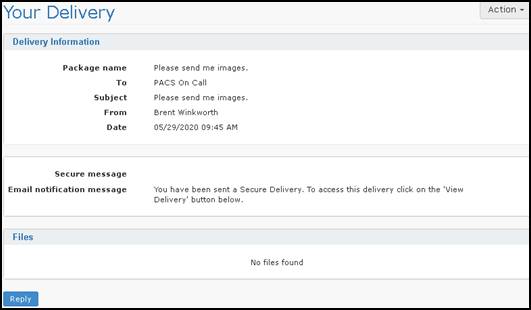
Once the
recipient has successfully logged in, they will have the option to respond to
the sender’s request by adding an attachment and/or message. Click Reply.

Create a folder in your (H:)drive and export the DICOM images from
your PACS to the folder destination. Do not include the DICOM viewer unless
requested. Right-click the folder and
send to compressed (zipped) folder.
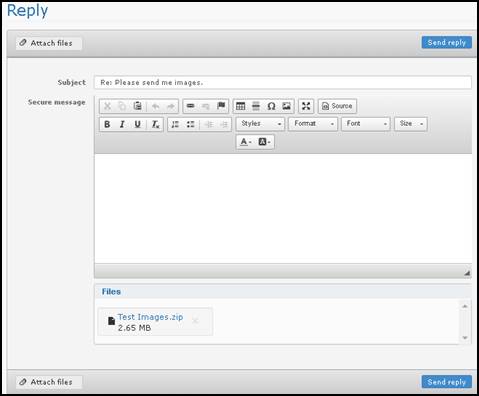
Click Attach files and select the files. If
required, include a secure message. Click Send
reply.